

A minimalist phone wallpaper should leave room for the information you use every day. Keep the main subject compact, put quiet color behind the clock, and consider the vertical crop before adding detail. With AI image generation, you can build those choices into the scene itself. Pale ice, a darker coast, and a softly lit dune offer different ways to keep a background interesting without crowding the screen.
Which Parts of Your Lock Screen Need Clear Space
Look at your current lock screen before choosing a scene. Notice where the clock sits and how much of the picture remains visible when notifications appear. Your wallpaper has to work in that arrangement, not only as an unobstructed photograph.
The region behind the time benefits from smooth tone rather than strong edges. A dramatic ridge can be beautiful in a landscape and distracting when it cuts through a numeral. Fog offers a practical alternative: it softens distant detail while keeping the scene photographic.
Place the focal point where you can still see it without moving every screen element around. For the examples here, a compact natural feature sits below a broad area of open atmosphere. Water or sand contributes texture, but the image does not depend on a second subject at either side.
Why a Wide Image Needs a Narrow Focal Point
A phone crop can remove far more of a landscape than you expect. For example, a full-height 9:16 crop from a 2752 × 1536 image is only 864 pixels wide. That retains about 31 percent of the source width. A taller crop would retain even less.
This is a useful planning example, not a universal phone size. Check the shape your own screen needs. If the source depends on an iceberg at the far left and a mountain at the far right, those features cannot both survive a narrow central crop at full height.
For the scenes here, keep the defining shape near the center and treat the side areas as expendable atmosphere. Do not put an important peak, reflection, or secondary object near an edge just to fill the wide composition. Empty space is doing a practical job when the eventual crop removes it.
Background Choices for Clear Clock Contrast
Pale Fog Around a Small Ice Formation
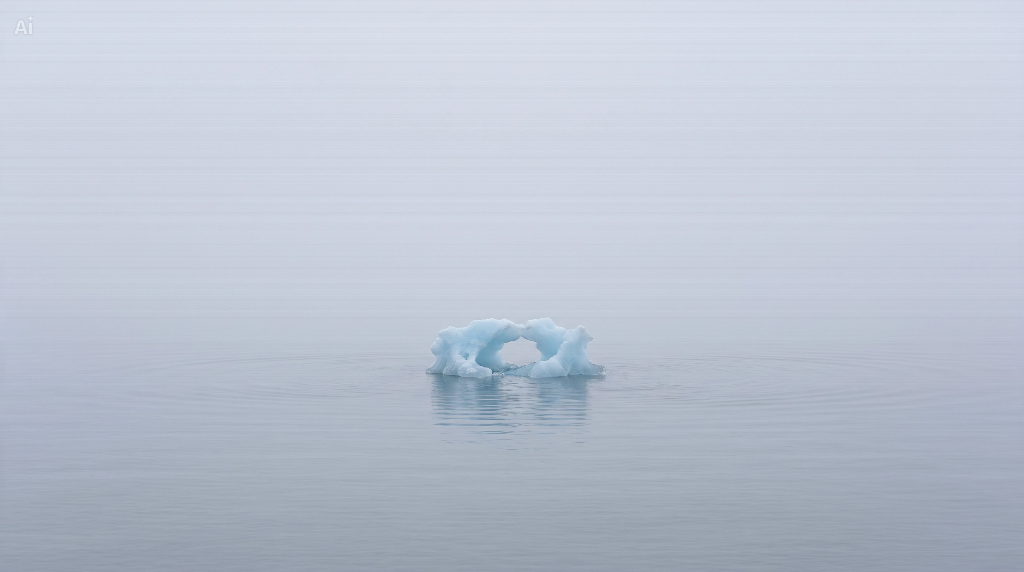
The pale option uses an isolated blue ice formation as its point of interest. Its shape provides something to look at, while the wide fog field leaves the upper part of the composition quiet. The water carries only gentle ripples, so the lower half does not become a competing pattern.
Try this direction when your preferred clock treatment remains distinct against a light background. The important contrast is between the lettering and the area directly behind it. A blue subject elsewhere in the picture cannot compensate for a pale clock disappearing into pale fog.
A prompt with a quiet upper half
Create a horizontal photorealistic seascape with a single small blue ice arch on still water, centered below the middle of the frame. Keep the entire ice formation narrow enough to fit inside the central fifth of the image. Above it, leave a broad field of smooth pale gray fog with a subtle cool gradient. Give the ice natural translucent edges and irregular surfaces, without turning it into a symmetrical sculpture. Use gentle ripples and a restrained reflection below. Exclude mountains, boats, birds, a visible sun, lettering, and a phone frame. The scene should remain recognizable when only a narrow vertical strip through its center is visible.
The phrase about a central strip matters as much as the description of the ice. It tells you what to preserve when judging the result: a complete silhouette, breathing room on both sides, and enough quiet space above it.
A Dark Coastal Scene for Lighter Lettering
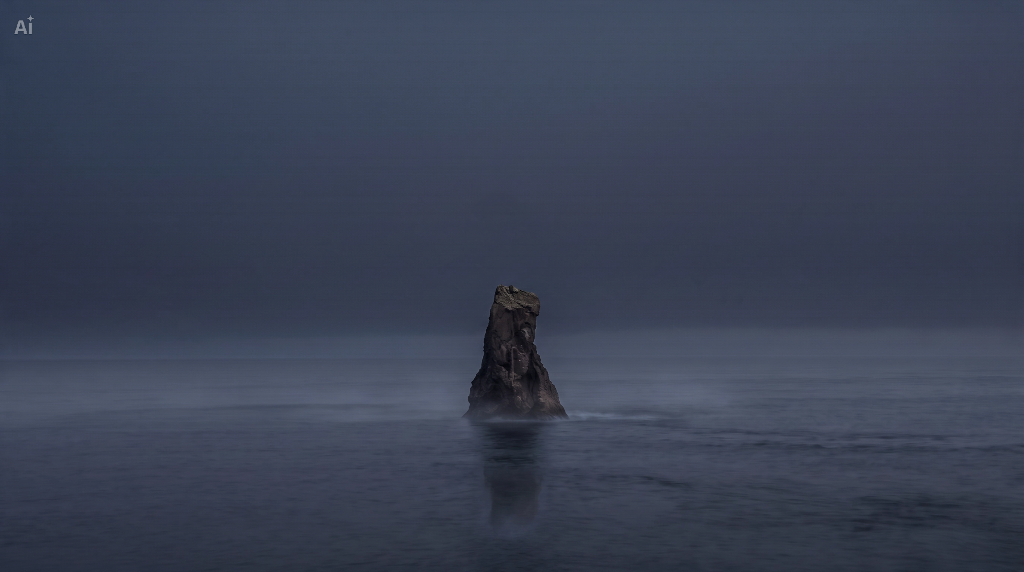
A dark background offers another route. Here, a narrow rock formation anchors a subdued sea scene. The darker upper area can provide a calmer setting for light lettering than a sky full of bright cloud edges.
Keep enough separation between the rock and its surroundings to retain its outline. If everything becomes the same near-black tone, the image loses its focal point. A faint band of mist near the base can establish depth without lighting up the entire scene.
A prompt for restrained dark tones
Create a horizontal photorealistic coastal landscape in subdued blue-gray light. Show one slender, irregular basalt sea stack centered in the lower half, occupying less than one fifth of the image width. Surround it with calm dark water and a thin veil of pale mist near its base. Keep the upper half a smooth deep blue-gray overcast atmosphere with no stars, moon, bright cloud edges, or visible sun. Preserve subtle rock texture and a readable silhouette. Leave generous space above and beside the stack. No people, buildings, boats, lettering, or device mockup. Compose the essential scene within a narrow vertical strip through the center.
A Warm Dune With Detail Below the Clock
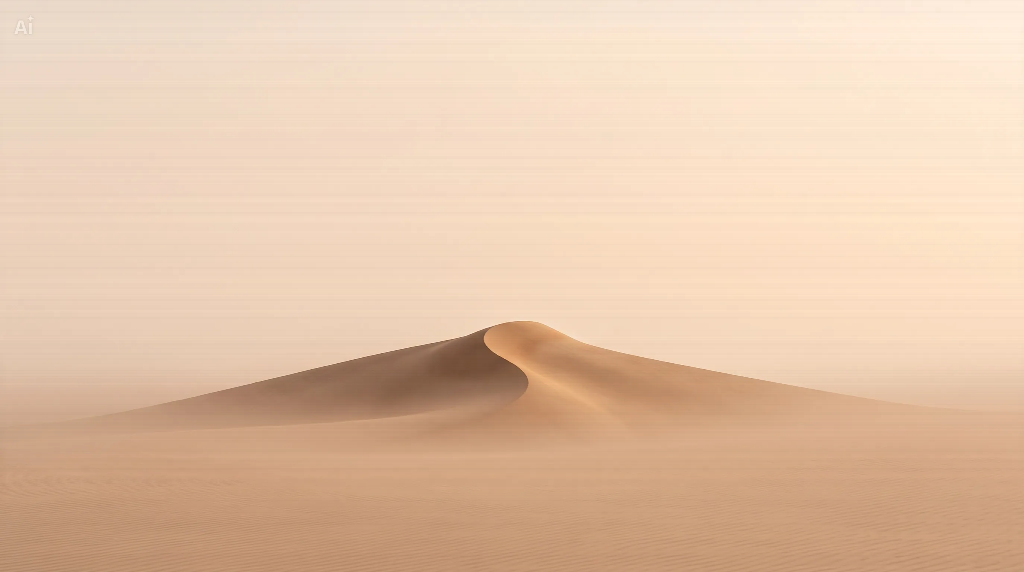
The desert option replaces an isolated object with a curve. Its central crest separates a softly shaded slope from a lighter one, while the peach-colored atmosphere above stays almost empty. The dune continues toward the sides, but its defining bend remains near the middle. A narrow crop can retain that bend without needing to show every slope.
This distinction matters when choosing a subject. An ice arch needs its complete outline to remain recognizable. A dune can extend beyond the screen as long as its crest still explains the form. Decide which part carries the scene before insisting that the entire landscape fit inside a phone crop.
A prompt for warm tones and a central curve
Create a horizontal photorealistic desert landscape with one gently curved dune crest near the lower center. Keep the defining bend compact enough to remain visible in a narrow vertical center crop. Let broad sandy slopes fade toward the sides. Leave the upper half smooth and hazy in pale peach tones, without a visible sun or distinct clouds. Use soft light and muted shadows to reveal the curve. Keep fine wind ripples low in the foreground. No footprints, plants, buildings, lettering, or device frame.
The lower ripples add texture, so preview this option with notifications visible as well as with an empty screen. Check whether notification text remains easy to read against the sand. If the pattern competes with the text, soften that region rather than removing the central crest that makes the wallpaper recognizable.
Turning the Composition Into a Wallpaper in CapCut
CapCut’s image creation tool supports text descriptions and reference images. Start with a text-to-image prompt that names the subject’s size and location as well as the scene. Specify which area should stay quiet instead of relying on the word minimalist alone.
Enter your description in CapCut’s AI image workspace and select Send. Review the focal shape and the open area around it. If the subject is too large for the intended crop, ask for a smaller formation with more surrounding water and atmosphere. If the clock region is busy, describe the cloud edge or ridge that needs to become softer.
Once the source composition is ready, select Download and preview it in your phone’s wallpaper setup. Position the crop before judging the color. Keep the complete focal shape visible, then check the clock and the space used by notifications. Do not assume that a clean-looking wide image has already passed this screen-specific test.
If the time is hard to read, revise the tone behind it or use a more contrasting clock treatment where your device allows. If the picture only works with an empty notification area, simplify the lower region too. A useful wallpaper should not require you to ignore the information displayed over it.
Summary
The strongest minimalist wallpaper preserves its focal point after cropping and gives the clock a quiet background. Choose a landscape whose tones suit your screen, then preview it with notifications visible. Start your next design with CapCut’s AI image generation tools, keeping the essential shape inside the crop and the busiest detail away from the time.